- Running diagnostics
- Nothing happens when I tap Start
- Wake word not detected
- No audio response
- No TTS / Audio on Announcements, Start Conversation, or Ask Question (CORS / mixed content error)
Before digging through the rest of this page, open the Voice Satellite sidebar panel and scroll to Diagnostics & troubleshooting. Tap Run diagnostics to execute the full check battery against this browser and the Home Assistant server.
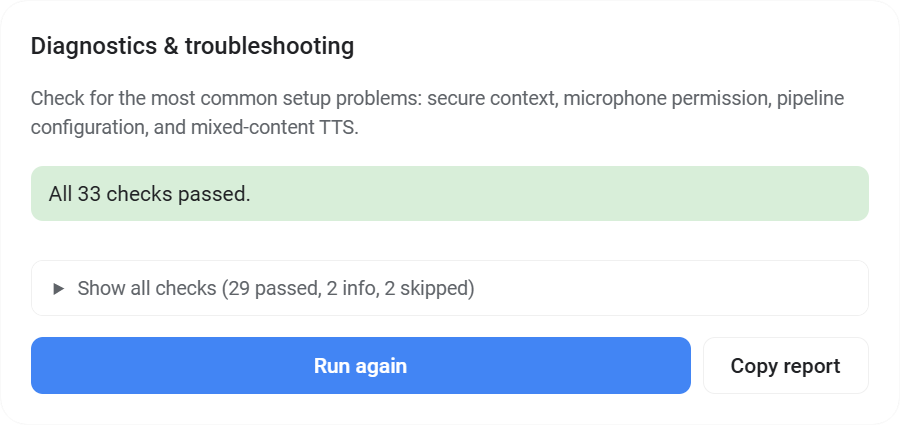
Checks cover the common failure modes:
- Browser environment: secure context (HTTPS/localhost),
navigator.mediaDevicesavailability,Permissions-Policyfor microphone and autoplay, microphone permission state, at least one audio input device,localStoragewriteability. - Voice Satellite bundle: overlay bundle loaded on this page, Lovelace resource registered exactly once (no duplicates from the archived standalone card).
- Satellite configuration: an entity is selected, the entity exists in Home Assistant, Pipeline 1 is resolvable, the pipeline has STT / TTS / conversation engines configured, those provider entities are loaded. When a second wake word is enabled, Pipeline 2 gets the same battery of checks independently and surfaces warnings when both slots point at the same model (slot 2 inert) or when Pipeline 2 is set to "Preferred" (slot 2 routes to Pipeline 1 anyway).
- URLs and TTS: Home Assistant
internal_urlandexternal_urlmatch the page protocol. A mismatch here is the single most common cause of "text shows but TTS is silent" forassist_satellite.announce. - Wake word: current detection mode (On Device microWakeWord / On Device openWakeWord / On Device vsWakeWord / Home Assistant / Disabled). In Home Assistant mode, a wake word entity is configured on the pipeline and loaded. In On Device (openWakeWord) and On Device (vsWakeWord) modes, the device must support WebGPU - diagnostics flags devices that don't. When Wake word 2 is enabled, its selected model is also reported.
- Audio: page-load autoplay probe reporting whether media element playback and
AudioContextcapture will start without a user tap. Remediation text is tailored to the current host (Kiosk Satellite, HA Companion App, Fully Kiosk, Kiosker Pro, or a plain browser). - Platform: detects Kiosk Satellite, Fully Kiosk, Companion App, ChromeOS, iOS, and other hosts so remediation instructions match the actual settings path. Inside Kiosk Satellite with the native wake word handoff active, the microphone check asks the app directly - a natively listening engine is proof of access, since the page never opens the microphone itself.
Failures and warnings render at the top of the panel with specific remediation for your platform. Passing checks collapse into a Show all checks disclosure below. The Copy report button writes a markdown block with the full results, card/overlay version, page URL, and user agent. Paste it into a GitHub issue instead of enabling Debug Logs when asking for help.
- Check HTTPS: Browsers require HTTPS for microphone access. If you're using HTTP, the microphone permission prompt won't appear. Use HTTPS or access via
localhost. Inside Kiosk Satellite plain http works: its Secure context proxy (Settings -> Home Assistant Configuration) makes the page a secure context, and the setup wizard enables it automatically for http URLs. - Check browser permissions: Make sure the browser has microphone permission for your HA URL. Look for a microphone icon in the address bar.
- Check Kiosk Satellite permissions (Android): If using Kiosk Satellite, microphone access is handled by the app - make sure its Android Microphone permission was granted (the setup wizard requests it; otherwise Android Settings -> Apps -> Kiosk Satellite -> Permissions), then reload the page.
- Check Fully Kiosk settings (Android): If using Fully Kiosk, ensure Web Content Settings -> Enable Microphone Access and Autoplay Audio are enabled.
- Check Kiosker Pro settings (iOS): If using Kiosker Pro, set Settings -> Security -> Camera and microphone permission to Allow. The default is Prompt, which asks for microphone access on every page load. Also enable Settings -> Security -> Allow JavaScript integration so screensaver backlight dimming works.
- Check the browser console: Open the developer tools (F12) and look for errors.
On-device mode (default):
- Check the device settings: Go to the satellite's device page and verify "Wake word detection" is set to one of the On Device modes ("On Device (vsWakeWord)", "On Device (microWakeWord)", or "On Device (openWakeWord)"), and at least "Wake word 1" has a model selected.
- If you're on vsWakeWord or openWakeWord and detection won't start at all: both engines require WebGPU. The satellite shows an error toast on devices that don't support it. Switch to "On Device (microWakeWord)" - the GPU requirement isn't a soft fall-back, it's enforced.
- Try adjusting sensitivity: Change "Wake word sensitivity" to "Very sensitive" to see if detection improves. This setting is shared across both wake word slots.
- If you configured two wake words and one never fires: open the diagnostics panel and look for the "Wake word 1 and 2 are distinct" warning. If both slots point at the same model the runtime dedupes to one copy and routes every detection to Pipeline 1, so slot 2 never activates. Pick a different model for slot 2 or set it to "Disabled".
- Check browser compatibility: On-device detection runs in pure JavaScript with
AudioWorkletandFloat32Array(both supported in every current browser). vsWakeWord and openWakeWord additionally require WebGPU support. - Enable Debug logging in the sidebar panel to see wake word scores in the browser console (F12). Scores are reported per model name, so dual-slot setups show one line per keyword.
Server-side mode ("Home Assistant"):
- Verify your wake word service is running: Check that your wake word engine (e.g., openWakeWord, microWakeWord) is available to Home Assistant - either as an add-on (Settings -> Add-ons) or as a Wyoming integration (Settings -> Devices & Services).
- Verify wake word detection is enabled in your pipeline: Go to Settings -> Voice assistants, select your pipeline, and check that a wake word is selected. This setting is hidden by default - click the three-dot menu at the top right of the pipeline settings to reveal the wake word configuration dropdown.
- Enable Debug logging in the sidebar panel to see pipeline events in the browser console (F12).
- Check that TTS is configured in your Assist pipeline.
- Check browser audio permissions.
- If using Kiosk Satellite (Android), audio autoplay is allowed out of the box - if TTS is still silent, update the app and reload the page (pull down to refresh).
- If using Fully Kiosk (Android), ensure that Web Content Settings -> Autoplay Audio is enabled.
- If using Kiosker Pro (iOS), ensure inline media playback / autoplay is enabled in Settings so TTS audio can play without a tap.
- The Home Assistant Companion App may block audio autoplay by default:
- Android: ensure that Settings -> Companion App -> Other settings -> Autoplay videos is enabled.
- iOS: there is no "Autoplay videos" option. Instead, go to Settings -> Companion App -> Debugging -> WKWebView Media Playback and make sure both Audio and Video are unchecked. A checked box makes iOS require a screen tap before that media type can play.
Without these settings, Voice Satellite will still function (wake word detection, speech-to-text, and visual feedback all work normally) but TTS audio won't play. The UI will clean up gracefully after the interaction completes.
If normal wake word conversations play audio correctly but announcements, assist_satellite.start_conversation, or the Ask Question action fail silently, open the browser console (F12). If you see an error like:
Access to audio at 'http://<ha-ip>:8123/api/tts_proxy/...mp3' from origin 'https://<your-ha-url>' has been blocked by CORS policy
Your Home Assistant internal URL is still http://... while you're accessing HA over HTTPS. Browsers block this mixed content. Fix it by setting both URLs to HTTPS in configuration.yaml:
homeassistant:
  external_url: "https://your-ha-url"
  internal_url: "https://your-ha-url"
WARNING: Your Home Assistant instance must actually be reachable over HTTPS at the internal URL before applying this fix. If your internal URL points to a plain
http://endpoint (for examplehttp://homeassistant.local:8123orhttp://192.168.x.x:8123) and you change it tohttps://without HTTPS actually being set up on that address, Home Assistant and integrations that rely on the internal URL will break (broken links, failed media fetches, broken camera proxies, add-ons that call back to HA, etc.). Set up HTTPS first (Let's Encrypt add-on or a reverse proxy, confirm the HTTPS URL loads in a browser, then changeinternal_urlto match.
Restart Home Assistant after saving. Wake word conversations work without this fix because they stream audio directly over the WebSocket, but TTS announcements fetch the MP3 via a proxy URL that HA constructs from internal_url.