Voice Satellite supports displaying rich visual results from LLM tool calls inline during voice interactions. These features require the Voice Satellite - LLM Tools integration, which provides the tools to your conversation agent.
Requirements:
- Install the Voice Satellite - LLM Tools integration, which provides the search tools to your conversation agent.
- Your Assist pipeline must use a conversational AI agent (e.g., OpenAI, Google Generative AI, Anthropic, Ollama, etc.). The built-in Home Assistant conversation agent does not support tool calling and cannot use these features.
- Image Search
- Video Search
- Web Search
- Wikipedia Search
- Weather Forecast
- Financial Data
- Lovelace Cards From Any Tool
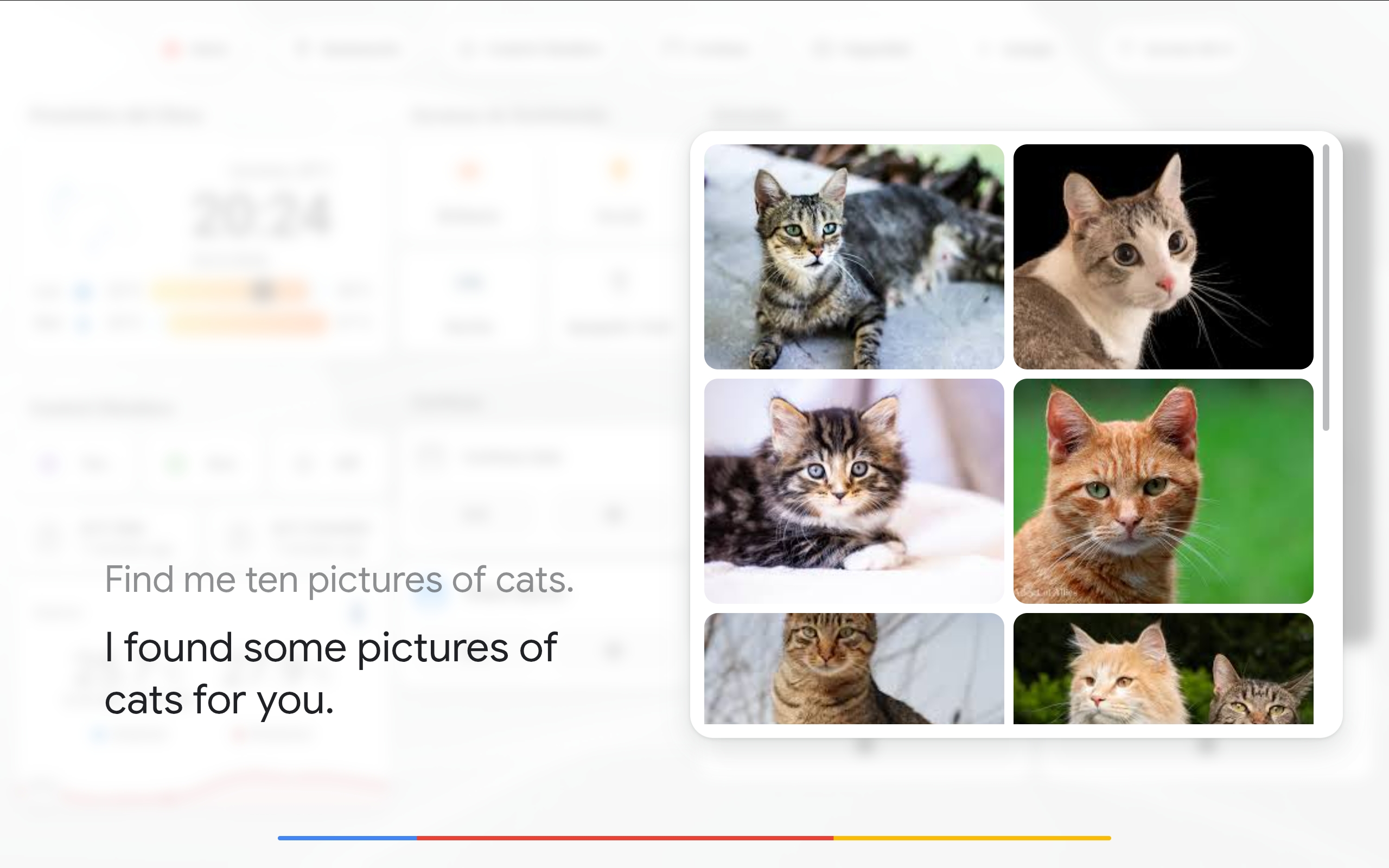
Ask your assistant to search for images:
- "Show me images of golden retrievers"
- "Search for pictures of the Eiffel Tower"
Results appear as a thumbnail grid in the media panel. Tap any image to view it fullscreen in a lightbox. The panel stays visible for the Keep on screen for duration set under Media Panel in the sidebar panel (default 30 seconds), and can be dismissed at any time with the stop word, a double-tap, a double-click, or the Escape key.

Ask your assistant to search for videos:
- "Search for cooking videos"
- "Find YouTube videos about woodworking"
Results appear as video cards showing the thumbnail, duration, title, and channel name. Tap any video to play it in the lightbox via YouTube embed. When a video is playing, TTS audio is automatically suppressed.
Ask your assistant to search the web:
- "Search the web for Home Assistant 2025 new features"
- "Look up the latest SpaceX launch"
The assistant responds with a summary of the search results. If the search returns a relevant featured image, it is displayed alongside the response.
Ask your assistant to look up topics on Wikipedia:
- "Tell me about the James Webb Space Telescope"
- "Look up the history of the Roman Empire"
The assistant responds with a summary from the Wikipedia article. If the article includes a main image, it is displayed alongside the response.
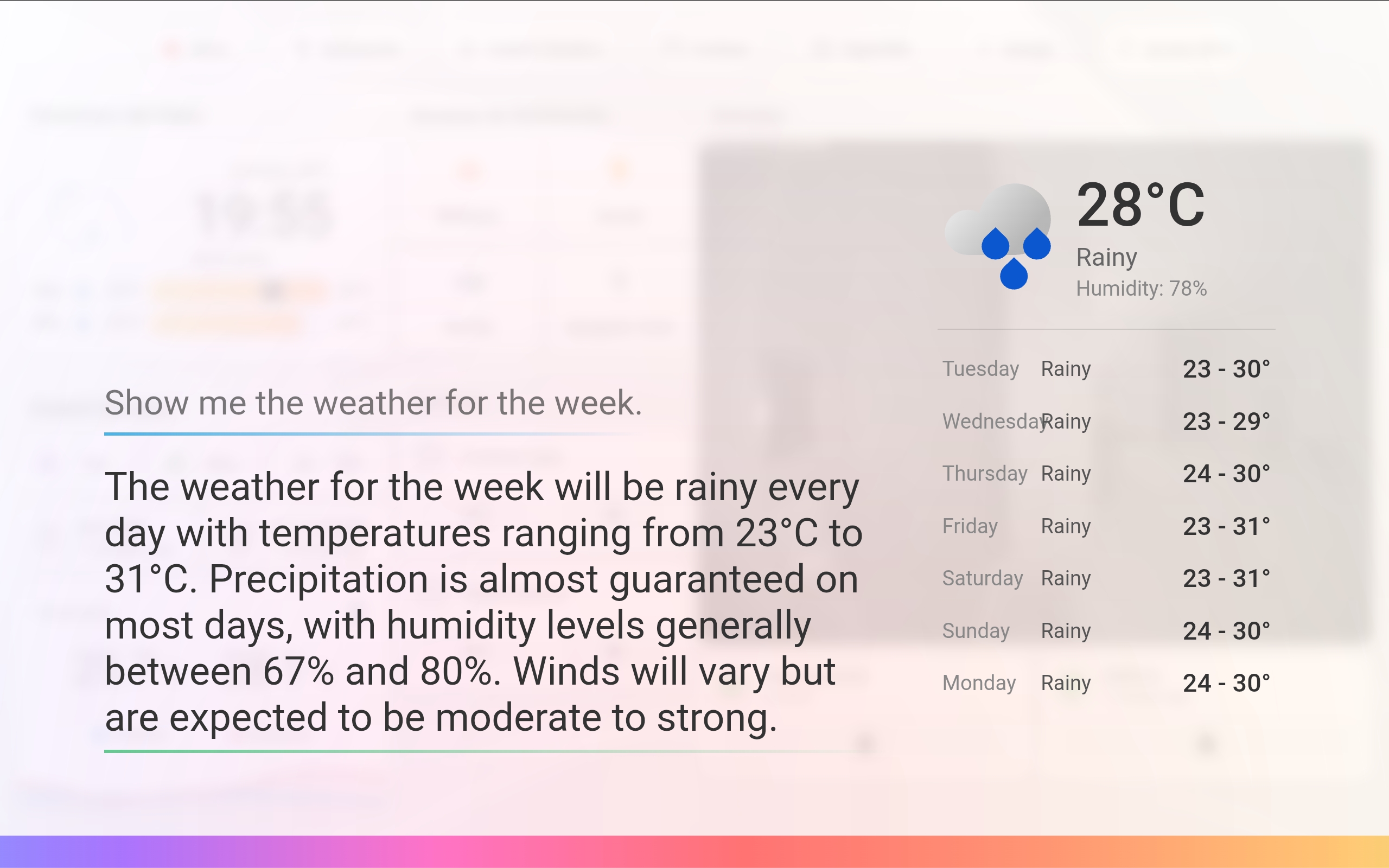
Ask your assistant about the weather:
- "What's the weather today?"
- "What's the forecast for this week?"
The assistant responds with a spoken summary while displaying a weather card in the media panel showing the current temperature, condition, humidity, and a scrollable forecast (hourly, daily, or twice-daily depending on the range requested). The weather icon is sourced from Google Weather SVGs via Home Assistant. The weather card uses the same narrow panel layout as web search and Wikipedia, and stays for the Keep on screen for duration set under Media Panel in the sidebar panel.
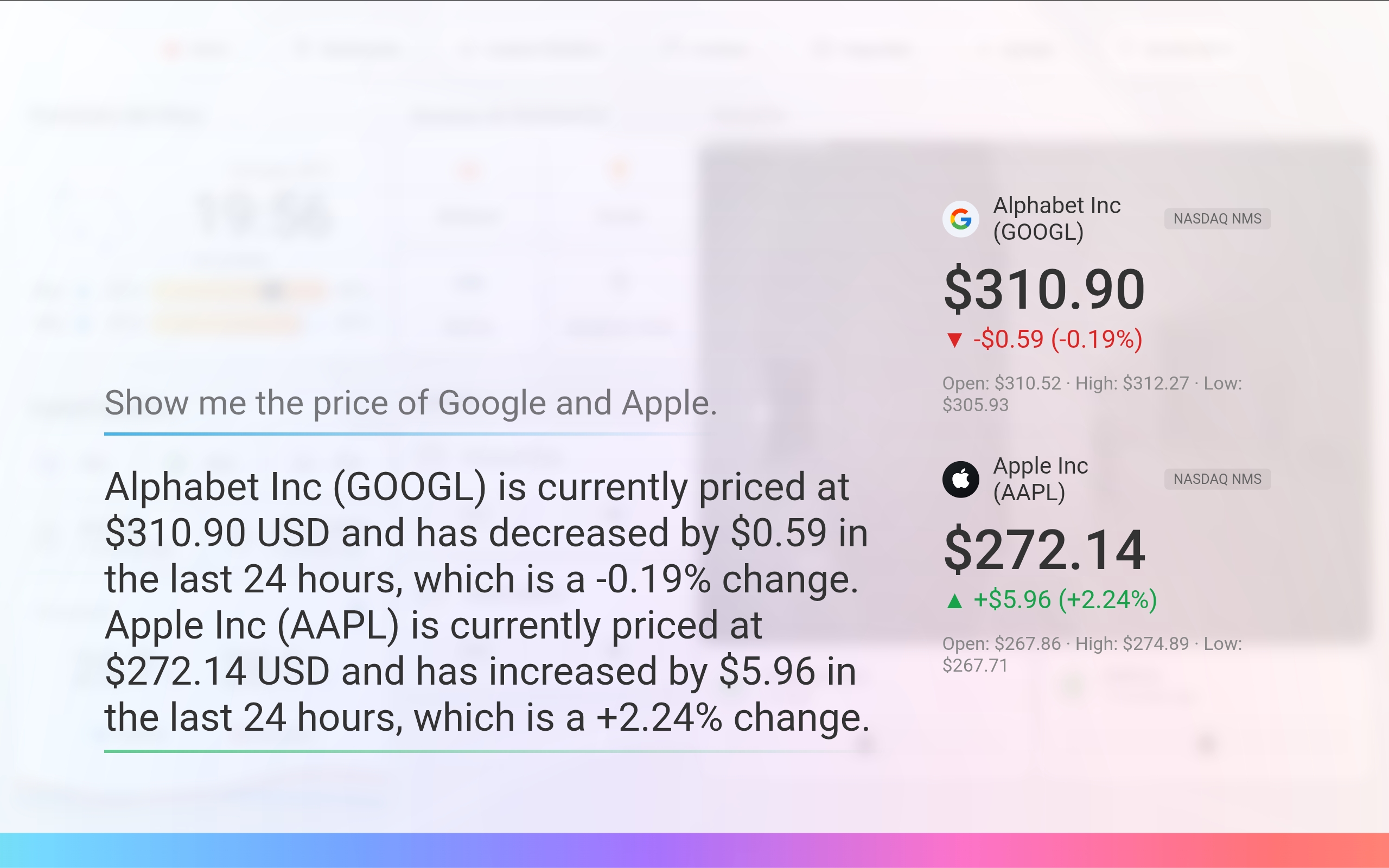
Ask your assistant about stocks, crypto, or currency conversions:
- "What's Apple's stock price?"
- "How much is Bitcoin right now?"
- "Convert 100 USD to EUR"
Stocks and crypto display a financial card showing the company or coin name, exchange badge, current price, color-coded change indicator (green with up arrow for gains, red with down arrow for losses), and key details like open/high/low prices or market cap. If available, a logo is displayed alongside the name.
Currency conversions display the converted amount prominently with the exchange rate below.
The financial card uses the same narrow panel layout as weather, and stays for the Keep on screen for duration set under Media Panel in the sidebar panel.
Any tool result that contains a card key holding a Lovelace card config paints that card into the media panel. Unlike the payloads above, this is not tied to a specific tool: it works with the LLM Tools integration, a custom pyscript tool, an MCP tool, or anything else that returns structured data to the conversation agent. The rest of the turn is unchanged, and the model still speaks its answer.
{
  "stop": "Centralstationen",
  "departures": [{ "line": "8", "in_minutes": 2 }],
  "card": { "type": "custom:ul-transport-map", "stop_id": 3700600, "content": "list" }
}
An assistant without a screen ignores the key harmlessly.
The LLM Tools integration ships an Entity Card tool built on this: ask to see a camera, a light, or a group of sensors and the assistant draws them while it answers out loud. It picks the card from the entities (live picture card for cameras, tile for one entity, entities list for several, history graph when asked for a trend) and only draws entities exposed to your assistant. Set it up under Settings > Devices & Services > Add Integration > Voice Satellite LLM Tools > Entity Card.
The card is rendered by Home Assistant's own card helpers, so any built-in card type works as it does on a dashboard. Custom cards work too, as long as the card is registered under Settings > Dashboards > Resources: the satellite loads the registered resource list itself the first time a custom: card arrives, since a page that is not a dashboard does not get those resources automatically. Only registered resources are ever loaded. A tool cannot point the satellite at an arbitrary script URL.
Behavior on the satellite:
| Aspect | Behavior |
|---|---|
| Interaction | None. The card is inert: taps do nothing and it never takes focus, because the satellite is a hands-free surface and a stray tap should not toggle a light. Scrolling a tall card still works |
| Live data | The card receives Home Assistant state updates while it is on screen, exactly like a card on a dashboard |
| Size | The card scales with the Text Scale slider in the sidebar panel, so a wall tablet read from across the room can size it up without a per-tool setting |
| Errors | A bad config, an unknown card type, or a custom card that is not registered renders Home Assistant's standard error card in the panel, with the reason inside it |
| Lifetime | Stays for the Keep on screen for duration set under Media Panel in the sidebar panel (default 30 seconds, 0 for until-dismissed). The stop word stays armed the whole time, so you can dismiss it by voice, double-tap, or Escape |