Theming the overlay (skins, custom CSS) and replacing the built-in chime sounds.
Voice Satellite includes a skin system that themes the entire overlay UI - activity bar, text display, timers, and background. Select a skin in the sidebar panel under Advanced.
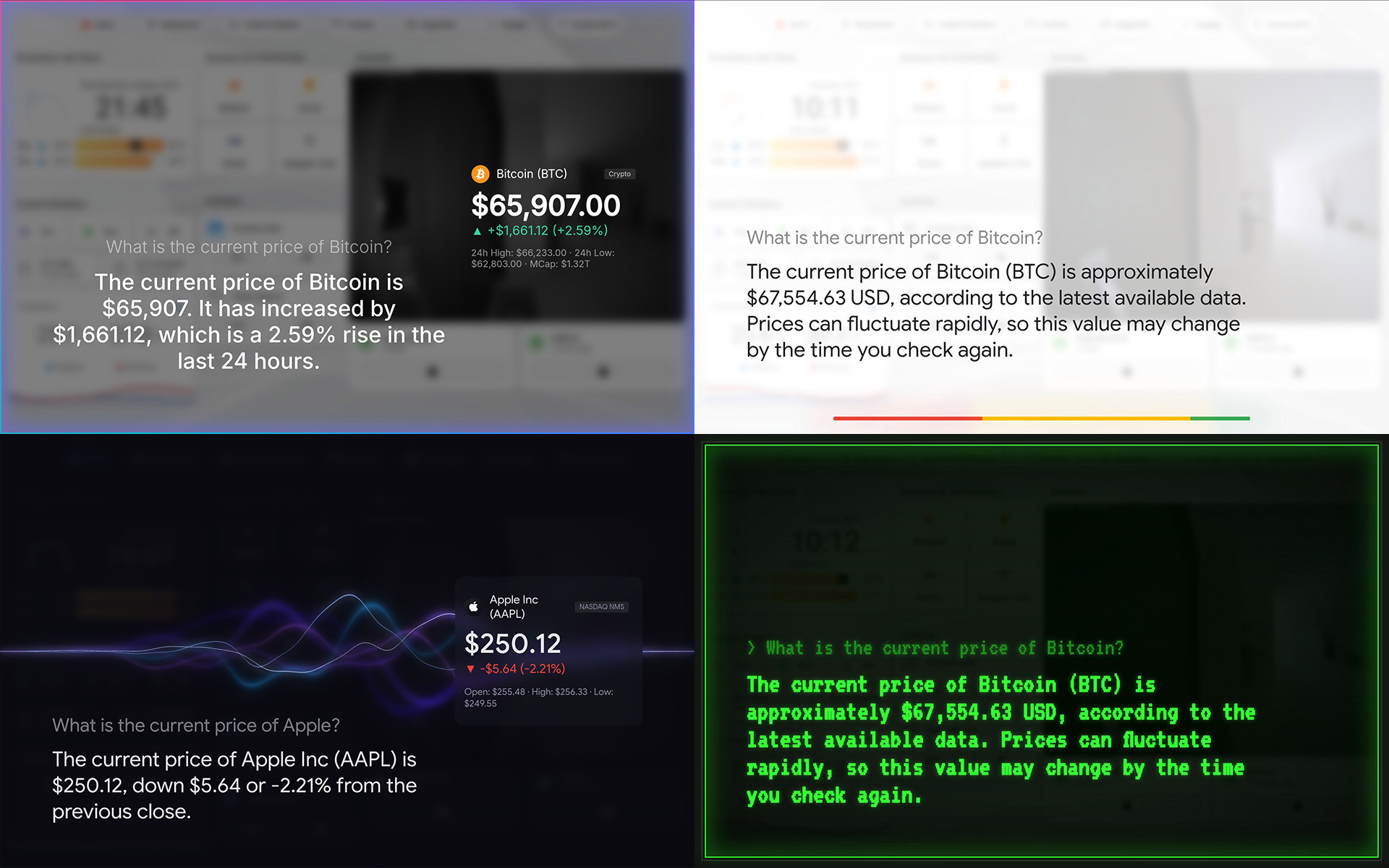
| Skin | Description |
|---|---|
| Default | Rainbow gradient bar with enhanced glow, floating text with colored fading borders, white overlay |
| Alexa | Cyan glow bar, dark overlay, centered bold text, Echo-inspired design |
| Google Home | Four-color Google gradient bar, left-aligned text, Nest-inspired design. Supports light and dark mode which automatically follows your HA theme or can be forced via the Theme Mode setting |
| Home Assistant | Matches your HA theme natively in both light and dark mode. All colors derived from your theme's primary color and card background via CSS custom properties - automatically adapts to any HA theme. Monochromatic four-tone activity bar with flowing gradient animation |
| Ink Blobs | Colored ink (red, yellow, blue, green, plus black on light / light grey on dark) injected as jets from the sides of a full-screen water surface and carried into swirling, billowing plumes by a real-time GPU fluid simulation (adapted from PavelDoGreat/WebGL-Fluid-Simulation, MIT). Audio level drives how often new ink is injected and how forcefully it shoots in, so the water churns while listening or speaking and settles into a calm drift otherwise. Automatically adapts to light and dark modes based on your Home Assistant theme settings. GPU-intensive! Not recommended for low-end devices |
| Kiosk Satellite | The Google Home layout in the Kiosk Satellite app's palette: warm neutral surfaces, teal accents and left-aligned text. Four-color gradient bar in the Kiosk Satellite logo colors, and the thinking indicator is a miniature of the logo's four bars. Supports light and dark mode which automatically follows your HA theme or can be forced via the Theme Mode setting |
| Lens Flares | Anamorphic vertical light streaks in cool blues with warm pink/red accents and scattered bokeh dots, all behind a heavy multi-pass bloom. Audio level pulses the brightness of the flares; a slow horizontal drift keeps the scene alive at idle. Edge falloff dims flares on the left and right where text sits, keeping the middle bright. Dark-only by design |
| Retro Terminal | Green phosphor CRT aesthetic with scanlines, bezel frame, monospace font, and screen-edge glow |
| Siri | Full-screen gradient border glow (purple -> blue -> teal -> pink), dark frosted overlay, centered clean text, Apple-inspired design |
| Waveform | Animated flowing neon waveform with strands that react to audio in real time. Automatically adapts to light and dark modes based on your Home Assistant theme settings. GPU-intensive! Not recommended for low-end devices |
Each skin defines CSS classes for all UI elements. Use the Custom CSS field in the sidebar panel to override any skin style. For example, to change the font family across all elements:
#voice-satellite-ui {
  font-family: "Comic Sans MS", cursive;
}The Waveform skin exposes CSS variables for full color customization of strands, background, and UI elements. Override them in the Custom CSS field. Dark and light themes have independent variables - set them separately to customize each mode.
Available variables
| Variable | Description |
|---|---|
--wf-overlay |
Full-screen background behind everything |
--wf-surface |
Background of elevated UI elements (panels, timers) |
--wf-surface-glass |
Transparent panel background over the waveform |
--wf-text |
Primary text color |
--wf-text-dim |
Secondary/dimmed text color |
--wf-text-muted |
Muted text color |
--wf-accent |
Accent color (progress bars, highlights) |
--wf-strand-1 through --wf-strand-7 |
Strand colors (1 = outermost glow, 7 = innermost core) |
--wf-strand-error-1 through --wf-strand-error-7 |
Strand colors during error state |
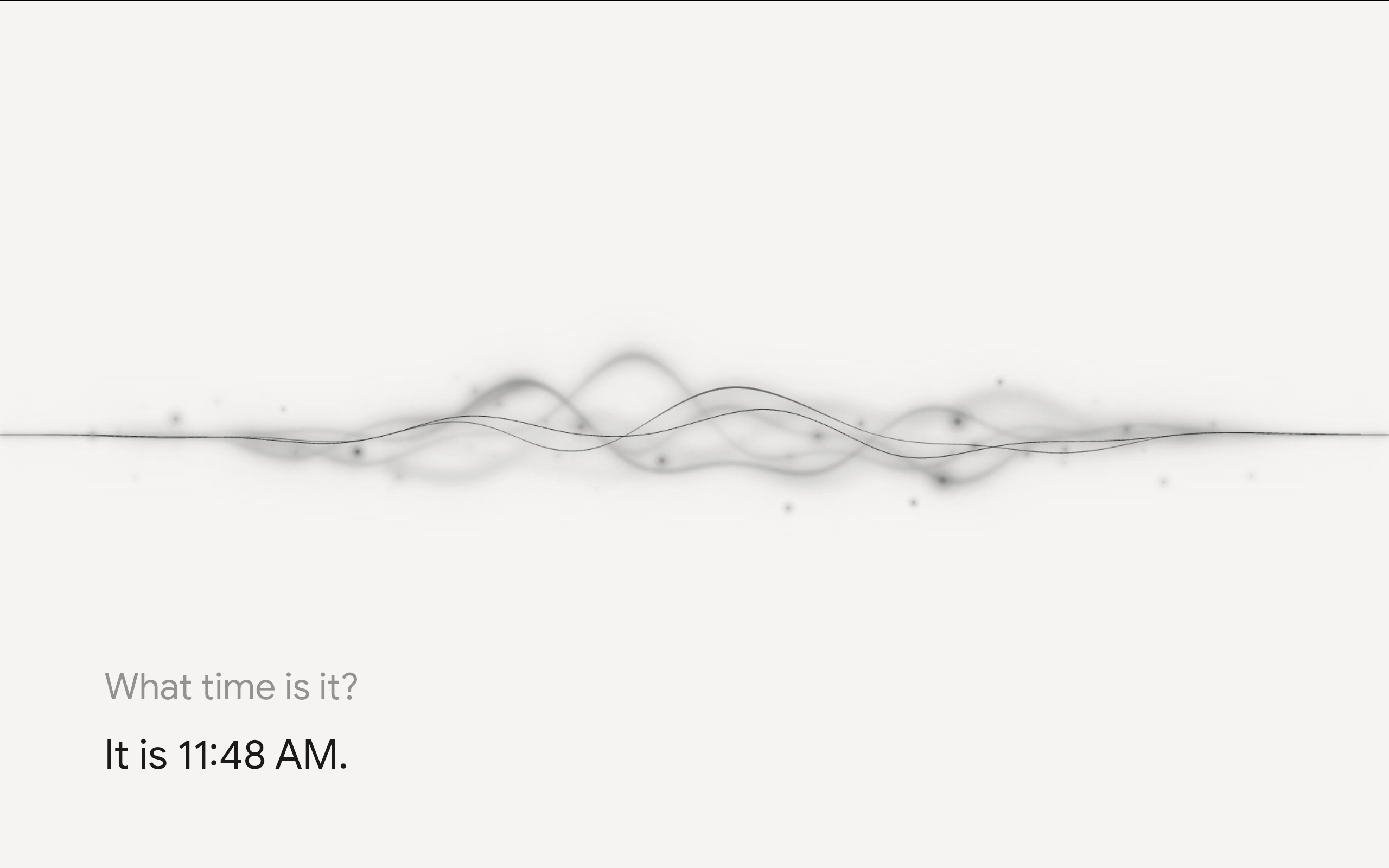
Example: monochrome theme
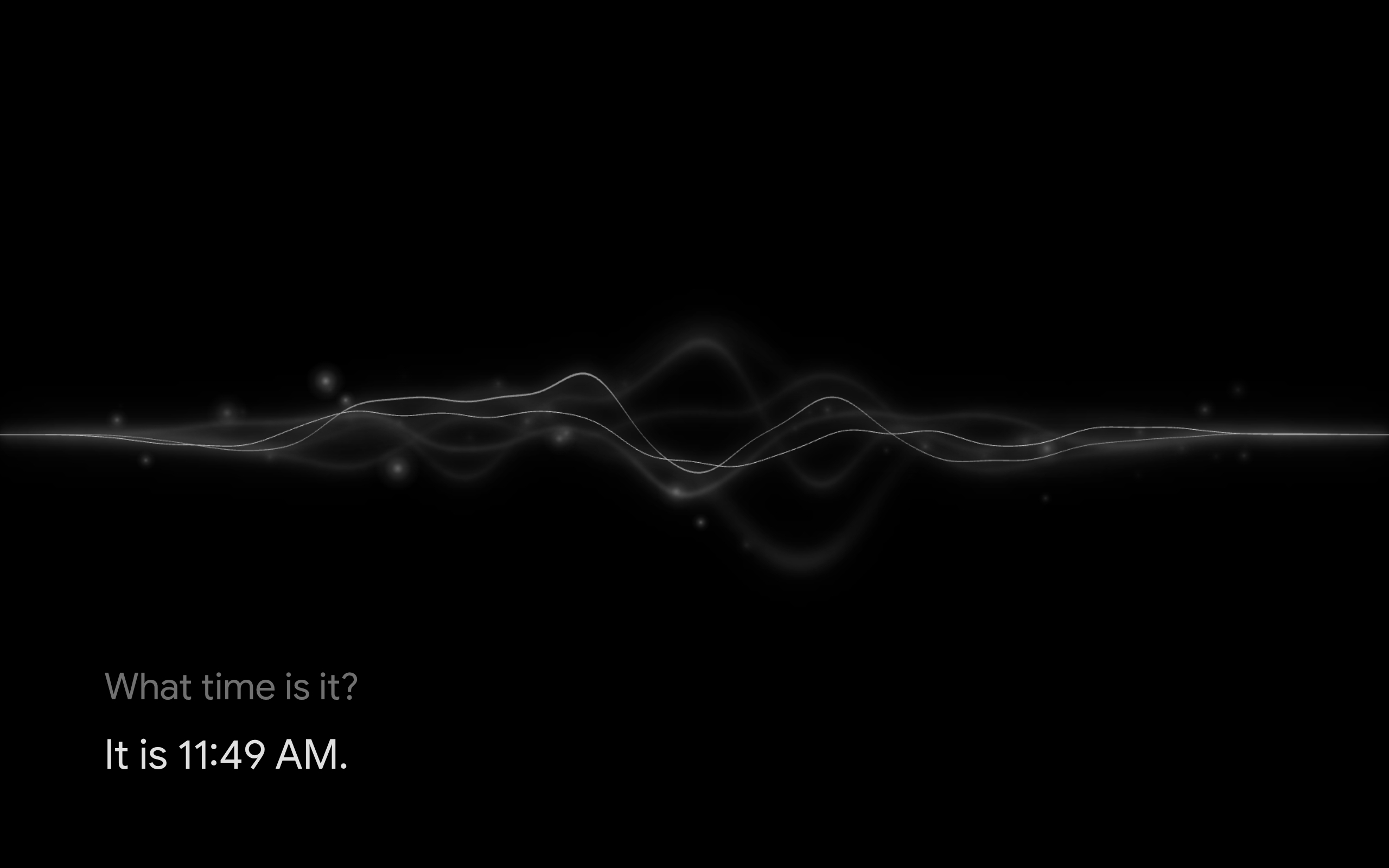
/* Monochrome dark */
#voice-satellite-ui.vs-dark {
  --wf-overlay: #000000;
  --wf-surface: #1a1a1a;
  --wf-surface-glass: rgba(26, 26, 26, 0.40);
  --wf-text: #e0e0e0;
  --wf-text-dim: rgba(224, 224, 224, 0.5);
  --wf-text-muted: #888888;
  --wf-accent: #aaaaaa;
  --wf-strand-1: #1a1a1a;
  --wf-strand-2: #333333;
  --wf-strand-3: #555555;
  --wf-strand-4: #666666;
  --wf-strand-5: #888888;
  --wf-strand-6: #aaaaaa;
  --wf-strand-7: #cccccc;
}

/* Monochrome light */
#voice-satellite-ui.vs-light {
  --wf-overlay: #f0f0f0;
  --wf-surface: #ffffff;
  --wf-surface-glass: rgba(255, 255, 255, 0.35);
  --wf-text: #1a1a1a;
  --wf-text-dim: rgba(26, 26, 26, 0.45);
  --wf-text-muted: #777777;
  --wf-accent: #555555;
  --wf-strand-1: #cccccc;
  --wf-strand-2: #aaaaaa;
  --wf-strand-3: #888888;
  --wf-strand-4: #777777;
  --wf-strand-5: #555555;
  --wf-strand-6: #333333;
  --wf-strand-7: #1a1a1a;
}The Ink Blobs skin exposes CSS variables for the ink colors, background, and UI chrome. Override them in the Custom CSS field. Dark and light themes have independent variables - set them separately to customize each mode. The five --ib-ink-N colors set the ink injected from the sides; changes apply to newly injected ink without a reload.
Available variables
| Variable | Description |
|---|---|
--ib-overlay |
Full-screen water surface behind the ink |
--ib-surface |
Background of elevated UI elements (panels, timers) |
--ib-surface-glass |
Transparent panel background over the ink |
--ib-text |
Primary text color |
--ib-text-dim |
Secondary/dimmed text color |
--ib-text-muted |
Muted text color |
--ib-accent |
Accent color (start button, progress bars, highlights) |
--ib-progress |
Timer pill progress bar fill |
--ib-ink-1 through --ib-ink-5 |
The five ink colors (default: red, yellow, blue, green, and black on light / light grey on dark) |
Example: custom ink colors
/* Teal / orange / violet / pink / white ink, dark */
#voice-satellite-ui.vs-dark {
  --ib-ink-1: #14dccd;
  --ib-ink-2: #ff9646;
  --ib-ink-3: #965aff;
  --ib-ink-4: #ff5a9a;
  --ib-ink-5: #e6e8ee;
}
Lens Flares uses a single token set (no separate light variant). Flare colors are baked into the canvas rendering, but every chrome element (text, timer pill, image panel glass, scrollbars, badges, video labels) is themed by the variables below. Override them in the Custom CSS field.
Available variables
| Variable | Description |
|---|---|
--lf-overlay |
Full-screen background behind the canvas |
--lf-surface |
Background of elevated UI elements (timer pills, alerts) |
--lf-surface-glass |
Transparent glass background for the rich-media panel |
--lf-text |
Primary text color (assistant messages, timers) |
--lf-text-dim |
User-message text color |
--lf-text-muted |
Muted labels (tool names, weather conditions, video channels, financial details) |
--lf-accent |
Cool accent (start button, thinking dot 1, progress bars) |
--lf-accent-warm |
Warm accent (thinking dot 3) |
--lf-progress |
Timer pill progress bar fill |
--lf-divider |
Hairline dividers (weather card sections) |
--lf-scrollbar / --lf-scrollbar-hover |
Image-panel scrollbar tones |
--lf-badge-bg |
Background for small inline badges (financial source, etc.) |
--lf-shadow / --lf-shadow-lg |
Drop-shadow tones for elevated chrome |
For local playback in Kiosk Satellite versions with Voice Satellite > Chimes, select or upload sounds in that settings group on the device or in Remote Admin. It includes wake, done, error, timer and announcement sounds with previews. Only the default sounds are bundled. Custom files stay on each kiosk and do not need a Home Assistant restart. Long timer sounds finish before repeating.
The Home Assistant file replacements below apply to browser playback and remote speakers. They do not replace Kiosk Satellite's locally selected sounds.
Voice Satellite's built-in sound files live in custom_components/voice_satellite/sounds/ as MP3s:
wake.mp3done.mp3error.mp3alert.mp3announce.mp3
If you want custom sounds to survive HACS upgrades, place them in:
config/voice_satellite/sounds/(recommended) - persists across updates
On startup, the integration restores .mp3 files from config/voice_satellite/sounds/ into the integration's sounds/ folder. If a file uses a built-in filename such as wake.mp3 or alert.mp3, it replaces the shipped version on startup. If you manually drop a non-built-in MP3 directly into custom_components/voice_satellite/sounds/, it is also backed up to config/voice_satellite/sounds/ on the next startup.